Keep it here,
for now.
Hangrail is a temporary shelf at the edge of your desktop.
Text, screenshots, files—set them down, pick them up when needed.
For macOS and Windows
 Hangrail · Desktop shelfInteractive demo
Keep working, even when you need to copy or drag something.
From this window,
to the next.
When switching between apps,
put what you need on Hangrail first.
Collect it
Copy / Drag in / CaptureNewly copied text, images, and files are collected automatically. You can also drag files and selected text straight in.
Set it aside
Store / Note / PinPin frequently used cards, or jot down a thought as a note.
Pick it up
Double-click / Drag out / ShortcutsDouble-click to paste into the original app, or drag content to another window. Select multiple items to copy or drag them together.
Capture it. Hang it up.
Record it, too.
On Mac, capture a selected area directly. With automatic collection enabled, system screenshots and recordings appear on Hangrail once saved to the chosen folder. Other videos are not imported automatically.
 Shelf appearance · Interface capture
00:03
Click “Demo screenshot” to see how a selected area appears on Hangrail.
Drag it in,
then drag it where you need it.
Set multiple files or a whole folder aside on Hangrail.
Preview them, then drag them together into an email or another app.
HangrailDrag files here from the left
Or click “Store selected”here
3 files selected. Try dragging them to the shelf in the middle.
With the shelf focused, hold ⌘ to see numbers and press ⌘1–⌘9 to use a card directly.
After a successful drag, unpinned transfer cards are removed by default; the original files stay in place. You can turn off automatic removal.
Next Wednesday2 pm
Let's review the product proposal.
Remember to bring the latest designs.
Remember just a few words?
You can still find it.
Search content, filenames, and text in images.
Filter by source app and group, too.
Want to see the cards around a search result?
Switch to “Locate” to see them in their original timeline.
 For example, find “budget” only in items copied from WeChat.
Three looks,
the same content.
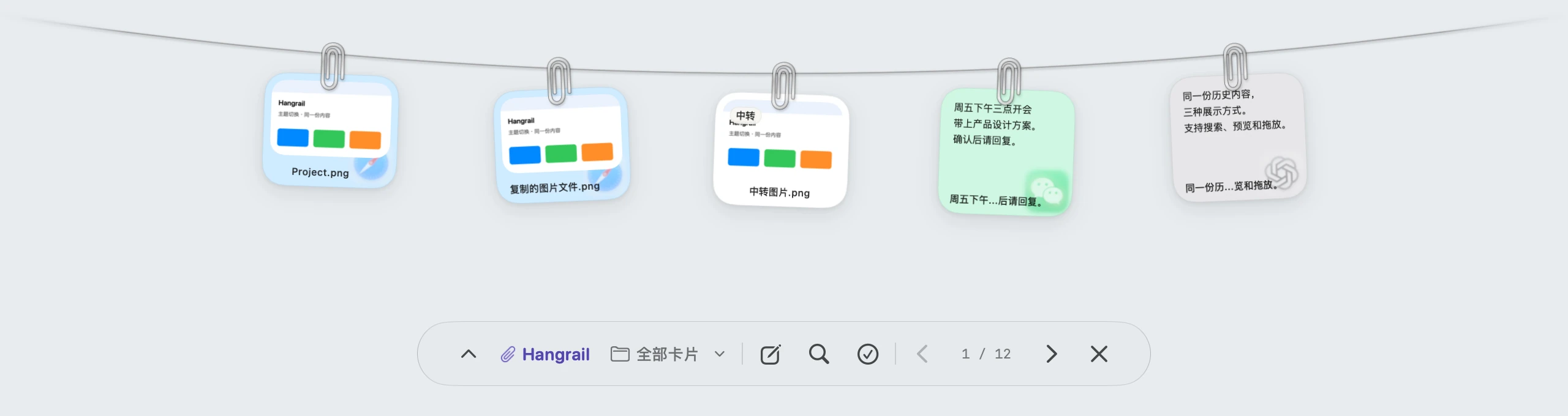
Clothesline drops from the top; Balloons and Cards rise from the bottom.
Change the look. Everything you've saved stays with you.


Opens from the top of the screen, with clips holding the cards.
Real Mac interfaceKeep it local,
or use it across devices.
No Hangrail account needed for everyday use.
To use it on two computers, choose sync or Nearby Sharing.
- Local storage
- Text recognition in images also runs on your device. Exclude specific apps or pause collection.
- Optional sync
- Connect Nutstore or another WebDAV service to sync in your own storage space. Synced content is end-to-end encrypted.
- Nearby Sharing
- Send selected text, images, and files to another computer over your local network. New devices require confirmation before receiving.
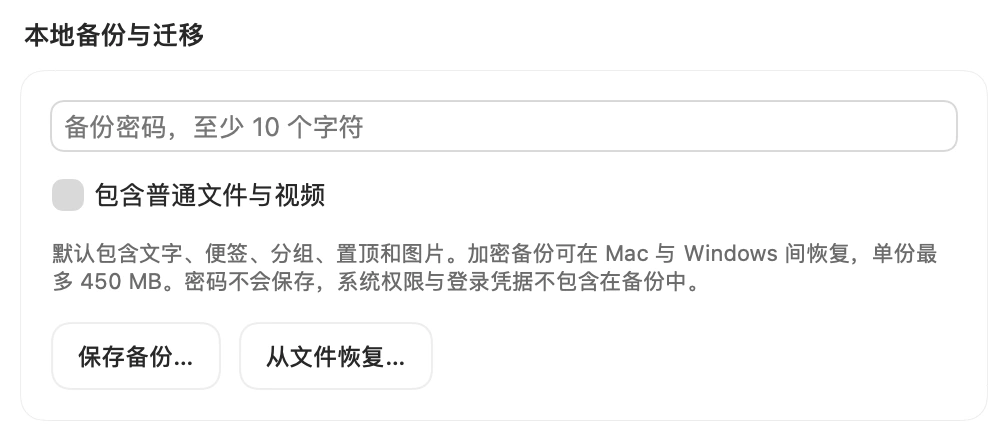
- Backup & restore
- Export an encrypted backup and restore it on Mac or Windows when changing computers.
WebDAV connection
Connect your own storage for encrypted sync between two computers.
Nearby Sharing
Send selected content to another computer over your local network.
File transfer
Collect and preview files, then deliver attachments to the destination app.
Backup & restore
Save an encrypted backup and merge its content when restoring on a new computer.
A few questions.
How is it different from clipboard history?
Alongside clipboard history, you can drag in files, collect screenshots, and write notes. Everything lives on one shelf, with search, pinning, and batch actions.
Will it get in the way of my desktop?
You can collapse the shelf. Hover at the corresponding screen edge or press a shortcut to open it when needed. All displays share the same content.
Which systems are supported?
The Mac version supports Apple Silicon and requires macOS 14 or later. Windows 11 versions are available for x64 and ARM64.
Can I paste with a double-click?
Click the input field in your destination app, open Hangrail, then double-click a card. Mac requires Accessibility permission. Without it, the content is copied so you can paste it manually.
Where is my content uploaded?
Everyday content stays on your device. Sync and Nearby Sharing are off by default and only sync or send content according to your settings once enabled.
Can I pause collection?
Pause for 15 minutes, 1 hour, or until you resume manually. You can also exclude specific apps from collection.
Give your work
some space.
Choose for your computer. Gitee is recommended for downloads in mainland China.
Current releases use development signing. The Mac version has not been notarized.View release notes ↗
For first-time installation, see the macOS installation guide or Windows installation guide. On Windows, extract Setup.zip first. Runtimes are downloaded from Microsoft as needed, requiring an internet connection.